
A popup (modal) form appears as shown in the screenshot below and is the result of clicking on a row (record) in a grid:
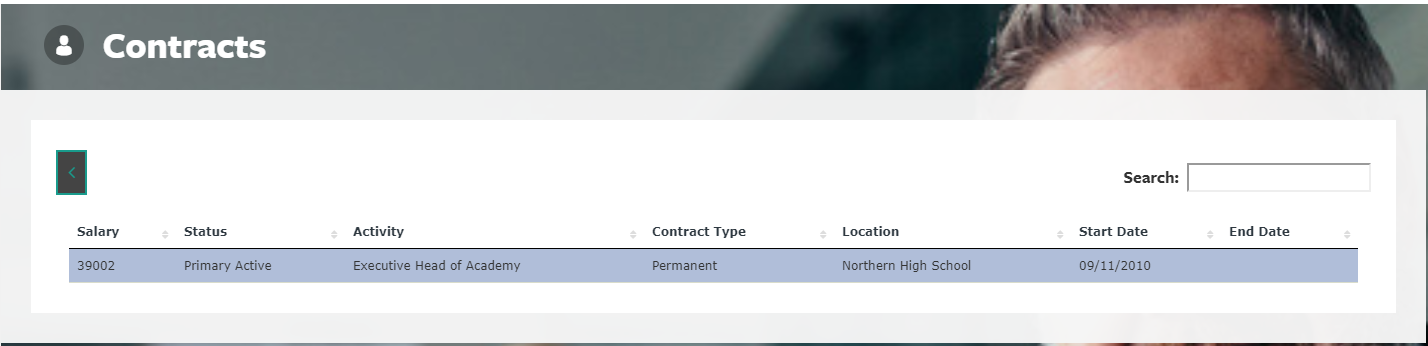
 These types of forms can be used to show additional details on a record (view only form) or allow the user to amend the selected record in the grid. The example above is a view only form that shows additional details on an employment history record.
Using the example above, the JSON for this popup form appears as follows:
{
"title":"Contracts",
"action":"query",
"queryreference":"SS - Contracts",
"role":"SS",
"message_no_data_content":"There are currently no contracts to show.",
"message_no_data_title":"Contracts",
"options":"Select",
"field_caption_width":"30",
"select_mode":"Single",
"next_action_title":"Contract Information",
"next_action":"form",
"next_reference":"SSVCONT",
"FieldsToExtract":[
{
"app_role":"SS"
}
]
}
The entries required for the popup form itself (not the grid), as highlighted above. The purpose of each of these JSON entries is outlined in the table below:
| Name | Description |
| options | This is mandatory. |
| select_mode | If the value is set to “Single” as the example shows, clicking on a row will trigger the “next_action” which is to display a “form”. |
| next_action_title | This is non-mandatory. The title of the form will default to “More Info” if this is not included. |
| next_action | This is set to form in the above example as a form is to be displayed when the user clicks on a row in the grid. |
| next_reference | This is the unique reference of the form (form reference) located in the Form Builder in the windows application (System Setup > HR Portal > Form Builder). |